Single-Port Server Deployment
FLARE requires only one open port for the FL server. A single port handles both FL client/server communication and admin client/server communication.
Note
If your network policies require separate ports for different types of traffic, you can optionally configure two separate ports. See Using Separate Ports below.
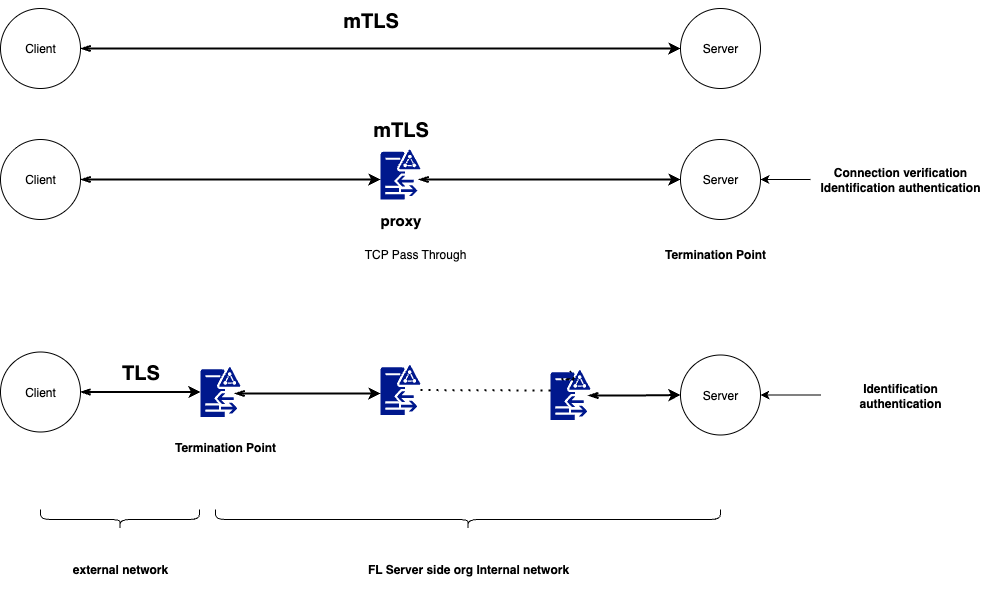
The diagram above illustrates the connection and authentication mechanisms enabled by single-port, TLS, and BYOConn features.
Using Separate Ports
For environments where different network security policies apply to admin and client traffic, the system can still be provisioned with two separate port numbers. See the provisioning configuration below for details.
Port Number Provision
The FL port number is specified with the fed_learn_port property in the project’s provisioning configuration file (e.g., project.yml). See the example below.
participants:
 # change example.com to the FQDN of the server
 - name: server
   type: server
   org: nvidia
   use_aio: false
   fed_learn_port: 8002
   host_names: [localhost, 127.0.0.1]
   default_host: localhost
If the property is not explicitly specified, it defaults to 8002. By default, the fed_learn_port is also used as the admin_port. However, you can specify a different port number using the admin_port property.
participants:
 # change example.com to the FQDN of the server
 - name: server
   type: server
   org: nvidia
   use_aio: false
   fed_learn_port: 8002
   admin_port: 8003
   host_names: [localhost, 127.0.0.1]
   default_host: localhost
Admin Client Configuration
Once provisioned, an admin user will receive a startup kit, which is used to connect to the FLARE server using the admin client (or FLARE API).
The startup folder in the kit contains essential configuration information that must not be modified by the user. If the file is modified, the admin client will detect it and will not connect to the server.
The local folder in the kit contains the resources.json.default file, which includes configuration parameters that the user can modify.
{
 "format_version": 1,
 "admin": {
   "idle_timeout": 900.0,
   "login_timeout": 10.0,
   "with_debug": false,
   "authenticate_msg_timeout": 2.0,
   "prompt": "> "
 }
}
The user can edit this file and set the parameters to better fit their local environment.
Idle Timeout
For security, the admin client automatically shuts down when idle for too long. The idle_timeout parameter specifies how long the client is allowed to be idle before automatic shutdown.
The default value is 900 seconds.
Login Timeout
When the admin client is started, it attempts to log in. However, the FL server may or may not be available at login time. The admin client will continue attempting to connect until a preset timeout is reached.
The login_timeout parameter specifies how long the client will attempt to log in before quitting. The default value is 10 seconds.
Authentication Message Timeout
One of the login steps is authentication. Multiple messages are exchanged between the admin client and the FL server for mutual authentication.
The authenticate_msg_timeout parameter specifies the timeout value for these messages. The default value is 2 seconds.
Consider increasing this value only if your local network is slow.
Enable Debug
Normally, the admin client runs without printing debugging information. If you encounter errors, you can enable debugging to print detailed technical information.
To enable debugging, set the with_debug parameter to true.
Command Prompt
When the admin client is started, it displays a prompt character for entering commands. This character is specified with the prompt parameter. You can change the prompt character to any character you prefer.
Command Timeout
Commands are sent to the FL server for execution through messages. The default timeout for each message is 5 seconds. If your network is slow, you may want to increase this to a larger value.
You can change the command timeout:
If you are running the admin client, issue the
timeout <value>commandCall the
sess.set_timeout(value)method when using the FLARE API